Compliment Controls & UI Reference
Find Codes, pick players cleanly, and read green arrow feedback during every reveal.
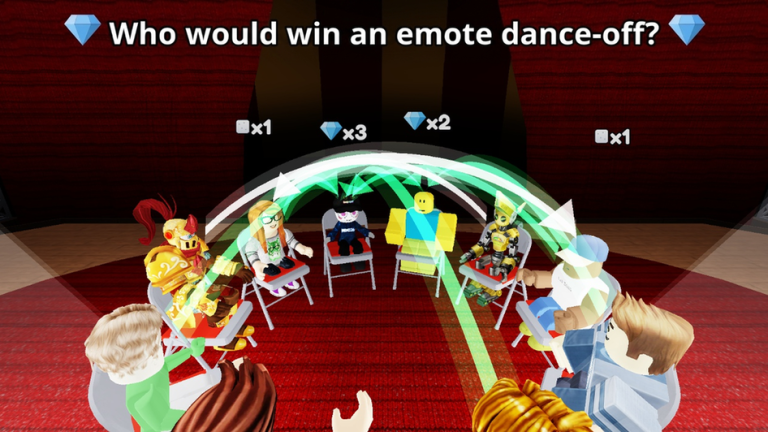
This Controls & UI reference demystifies the on-screen buttons in Compliment, the Roblox party game by TÄ Games. You will learn where the Codes control lives, how to select the correct player when a question appears, how to interpret the reveal when arrows fly, and how green arrow feedback ties to gems. Pair this page with Getting Started on day one and with How to Redeem Codes whenever promos return.
Compliment supports up to 16 players, so crowded cameras are normal. Most “the game ignored my vote” complaints are actually UI misses — fixable with the habits below.
HUD map (conceptual)
Exact art can shift after patches such as the 8 November 2026 update, but the jobs stay stable:
| Control / surface | Job |
|---|---|
| Question prompt panel | Shows who you should be complimenting about |
| Player avatars in world | Tap/click targets for your vote |
| Codes button | Opens the redeem field for promo strings |
| Reveal / arrow presentation | Shows how votes traveled; green arrows signal gem rewards |
| Chat (Roblox) | Social context — optional but useful for room reading |
If a control vanished after an update, rejoin once and check Updates before assuming it was removed.
Codes button — find and use
- Join a live Compliment server (not the Roblox website redeem flow).
- Wait for the experience HUD to finish loading.
- Locate Codes on the HUD — often near other menu or gift-style entry points.
- Open it, focus the text field, paste a string exactly, submit.
- Watch for success or error feedback.
As of 7 November 2026, the Codes Hub listed no working codes. Practicing the button still matters so you are ready for the next TÄ Games drop. Never enter your password into third-party “redeem” sites.
Selecting a player during a question
Desktop
- Move the camera so the target is unobstructed
- Hover to confirm highlight before clicking
- If two avatars overlap, orbit slightly instead of spam-clicking
Mobile
- Pinch zoom when the lobby is dense
- Tap once to select; avoid dragging from another UI panel
- If the wrong player highlights, cancel and retap carefully
Console
- Engage the virtual cursor with patience
- Prefer clearer camera angles over rushing the timer
Mis-taps destroy otherwise perfect S-tier reads from the Tier List. Accuracy is part of the meta.
Reading the reveal
When votes lock, arrows animate across the lobby. Pay attention to:
- Where arrows originate and land — the social graph of that round
- Green arrows — positive reward state tied to gems (How to Earn Gems)
- Crowd reactions — chat and emotes that teach what the room valued
Do not spam jump through every reveal. Three seconds of attention improves your next vote more than an extra AFK round.
Common UI problems and fixes
| Problem | Likely cause | Fix |
|---|---|---|
| Cannot find Codes | HUD not loaded / moved after patch | Rejoin; scan edges; see Updates |
| Vote hit wrong player | Overlap / laggy tap | Zoom, orbit, confirm highlight |
| No feedback after redeem | Field not focused / invalid code | Retap field; verify string on Codes |
| Reveal confusing | Ignored animation | Watch one full reveal silently |
| Feels “broken” | Expecting scripts | Skip injectors — Scripts |
Accessibility and comfort tips
- Lower graphic settings if crowded lobbies tank frame rate and make taps imprecise
- Increase device brightness so highlight states are obvious
- Use headphones if chat callouts help your friend group coordinate votes
- Take breaks when tilt makes you mash the wrong avatar
Teaching the UI to newcomers
Give friends a 20-second tour:
- “Prompt appears here.”
- “Tap the person who fits.”
- “Watch arrows — green means gems.”
- “Codes button is here for later.”
Then send them to Getting Started and Players for etiquette.
Linking controls to strategy
UI skill multiplies strategy skill. A perfect room read still fails without a clean tap. Practice controls in a private lobby, then apply Voting Strategies in public. Explore the Secret Area only after you can vote without staring at the floor.
Related pages
- Tools Hub — parent hub
- How to Redeem Codes — Codes flow deep dive
- Tips and Tricks — habits beyond the HUD
- Links Hub — official experience links
Learn the buttons once. Every future compliment lands cleaner.
Frequently Asked Questions
Quick answers about Compliment on Roblox.
Where is the Codes button in Compliment?
On the in-experience HUD after the lobby loads. Open it to redeem strings — details also on How to Redeem Codes.
Why did I select the wrong player?
Overlapping avatars and rushed taps are common. Zoom or orbit, confirm the highlight, then vote.
What do green arrows mean on the reveal?
Green arrows are the positive reward signal tied to earning gems. See How to Earn Gems.
Did the November update change controls?
Always recheck the HUD after patches such as 8 November 2026. Compare with Updates if something moved.